Resize Image to 100 KB Online
Compress images to exactly 100 KB for fast websites, email newsletters, and CMS uploads. Optimised for Core Web Vitals and Gmail's 102 KB clip threshold.
Default Target Size
Compress images to 100 KB for fast websites, email newsletters, and CMS uploads
100 KB is the most common "web-optimised" image size and the one most front-end performance guides recommend by default. It is small enough that a typical blog post with five images still loads under a second on 4G, and large enough that 800-1200 px wide content images stay sharp on retina displays.
The 100 KB target also has a specific email use case: Gmail clips message bodies above 102 KB, so newsletters that embed multiple inline images need each one under 100 KB to fit within the visible portion. If your subscribers see a "[Message clipped] View entire message" link, image weight is usually the cause.
How Size Compression Works
Upload Images
Upload and set target file sizes in KB or MB
Smart Compression
Algorithm finds optimal quality for your target
Download Results
Get images at exact sizes you need
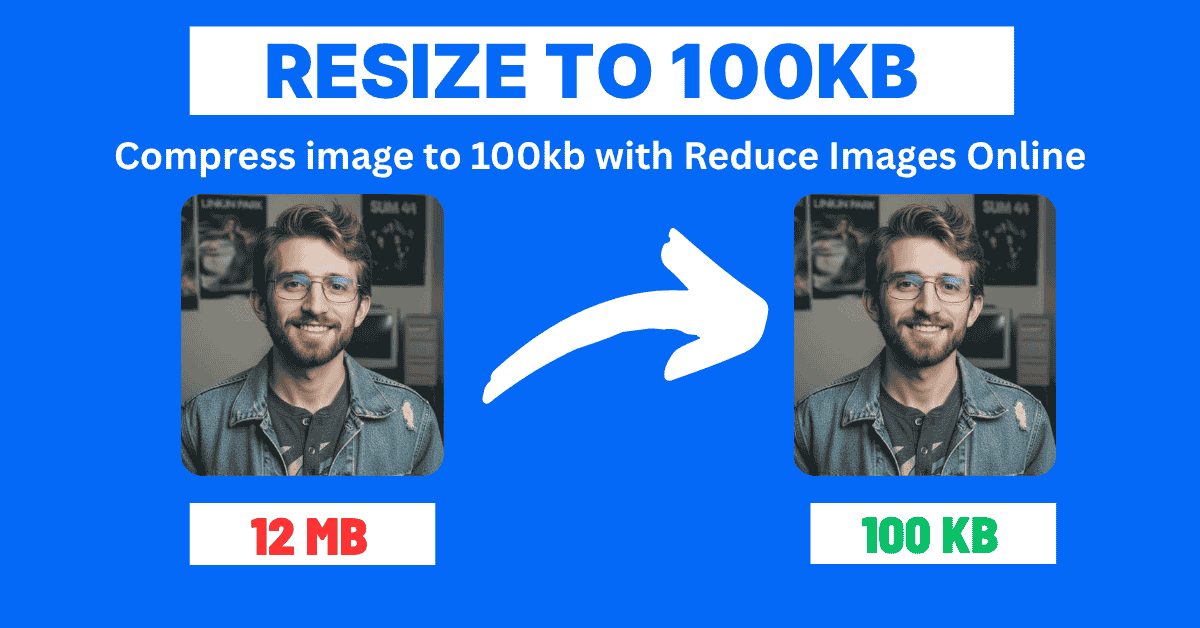
Why 100 KB is the default target for content images
Gmail 102 KB clip protection
Newsletter platforms (Mailchimp, Substack, ConvertKit, Beehiiv) all warn when total email weight exceeds 102 KB. Keeping each image under 100 KB gives you headroom for HTML, fonts, and tracking pixels.
Core Web Vitals (LCP) target
Google considers LCP under 2.5 seconds "good." A 100 KB hero image decodes in 100-300 ms on most devices, leaving the rest of the budget for fonts, JS, and rendering — comfortable margin on most stacks.
CMS upload ergonomics
WordPress, Ghost, Wix, Squarespace, and most modern CMSs let you upload larger files but quietly compress them server-side. Pre-compressing to 100 KB means you control the quality instead of leaving it to a generic CMS encoder.
Mobile data friendliness
For users on metered or poor connections, 100 KB images load reliably. The same page with 1 MB hero images often fails to load images at all on weak signals, leaving broken-image placeholders.
Pages and platforms where 100 KB is the right target
📧 Email newsletters
Mailchimp, Substack, Beehiiv. Keep each inline image under 100 KB to avoid Gmail clipping. The rest of your 102 KB budget covers HTML and CSS.
📰 Blog featured and inline images
For 800-1200 px content widths, 100 KB at JPEG quality 75-80 looks sharp on phones, tablets, and laptops. Use 200 KB for full-bleed magazine layouts.
🏪 E-commerce gallery thumbnails
Shopify, WooCommerce, BigCommerce thumbnails (400-600 px). Customers see crisp images and pages stay fast on the listings grid.
🏢 Marketing landing pages
Above-the-fold hero, testimonial portraits, feature illustrations. 100 KB per image keeps total page weight low and CWV scores green.
📱 Mobile app store screenshots
The Apple App Store and Google Play accept up to 8 MB per screenshot, but 100-200 KB is enough for the listing display sizes (90% of impressions are on phones).
💼 LinkedIn article header images
LinkedIn re-compresses everything, but starting at 100 KB protects against double-compression artifacts. Recommended dimensions: 1200×627 px.